
Use this guide to connect to VPN using the Cisco AnyConnect Mobility Client Application that is already installed on your computer.
The Cisco AnyConnect Secure Mobility Client is pre-deployed on your Karma issued laptop. In the event you don’t have access to your laptop and you need access to the Karma network, connecting through a web browser will be a quick way to access published Internal Web applications such as Polarion, Qportal, Exclead, etc. You can find steps on how to connect to VPN using a web browser below:
Launching the Cisco AnyConnect VPN client (Windows)
Microsoft Windows Client
- Launch the Start menu (Figure 1)
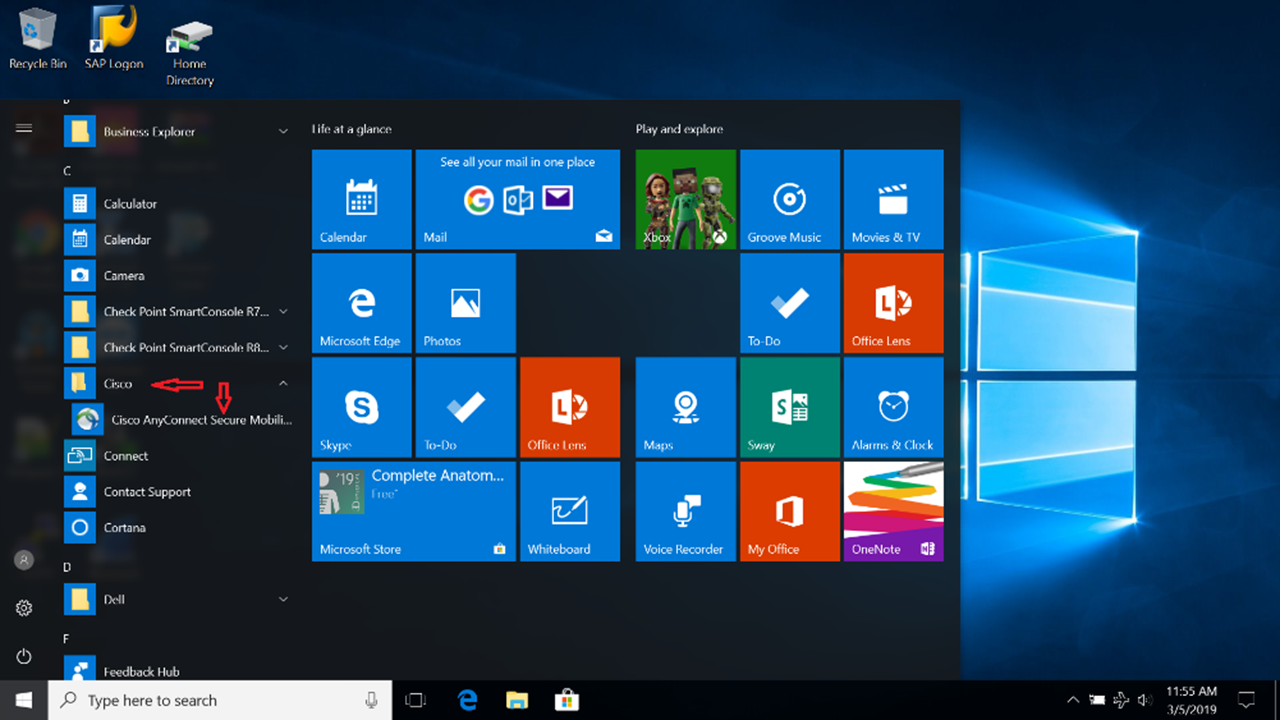
- Open the Cisco folder
- Click on the Cisco AnyConnect Secure Mobility Client (APP)
Launching the Cisco AnyConnect VPN client (MAC)
Apple MacOS Client
- Open the Application Folder
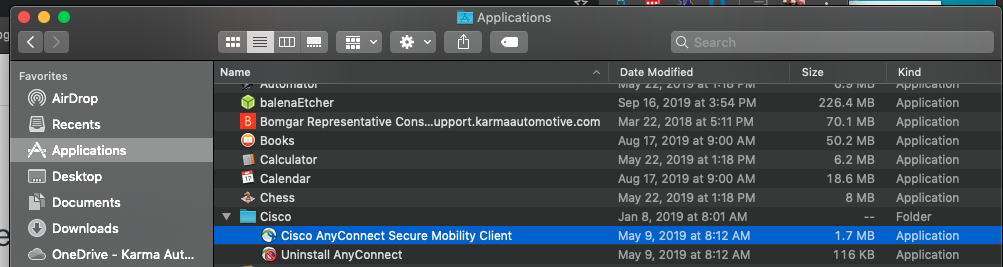
- Open the Cisco folder
- Click on the Cisco AnyConnect Secure Mobility Client (APP)
Connecting to the VPN Service (AnyConnect Client) with the Active Directory Credentials
| The URL will be pre-filled in the “Ready to connect” field, however if the field is empty, type the following: secure.karmaautomotive.com |
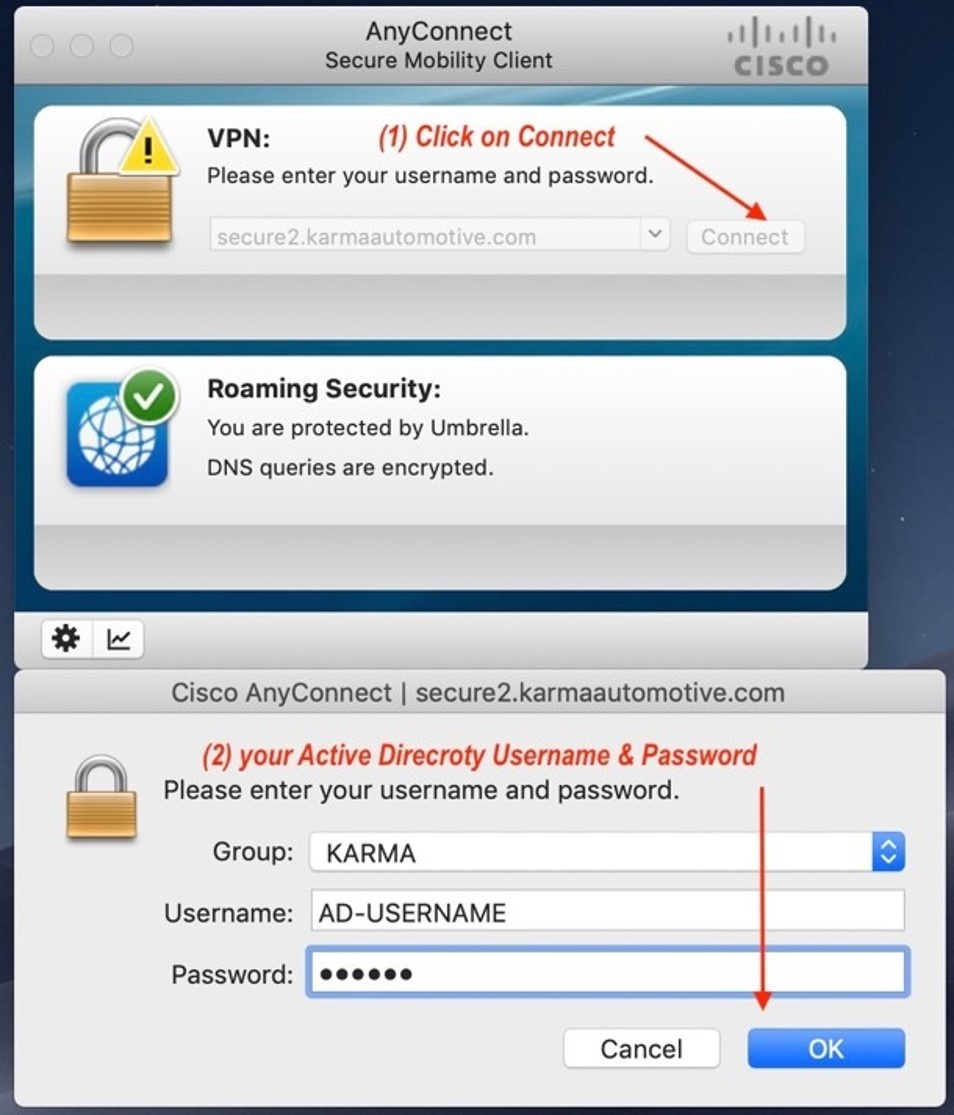
1. Once you open the application you will be presented with this screen. Enter secure.karmaautomotive.com -> connect
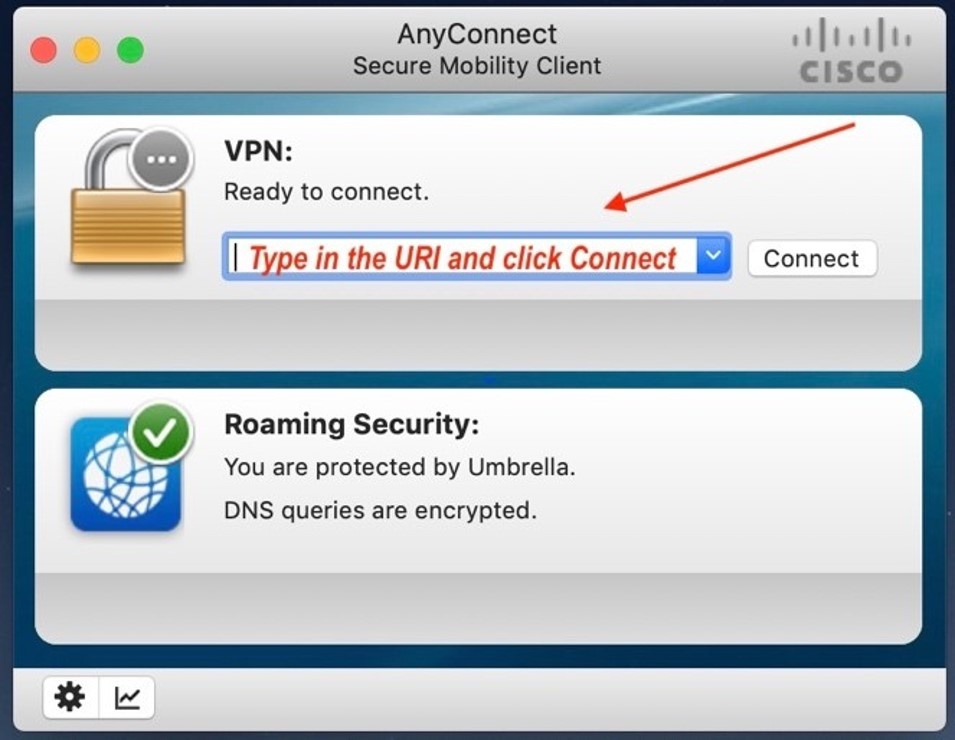
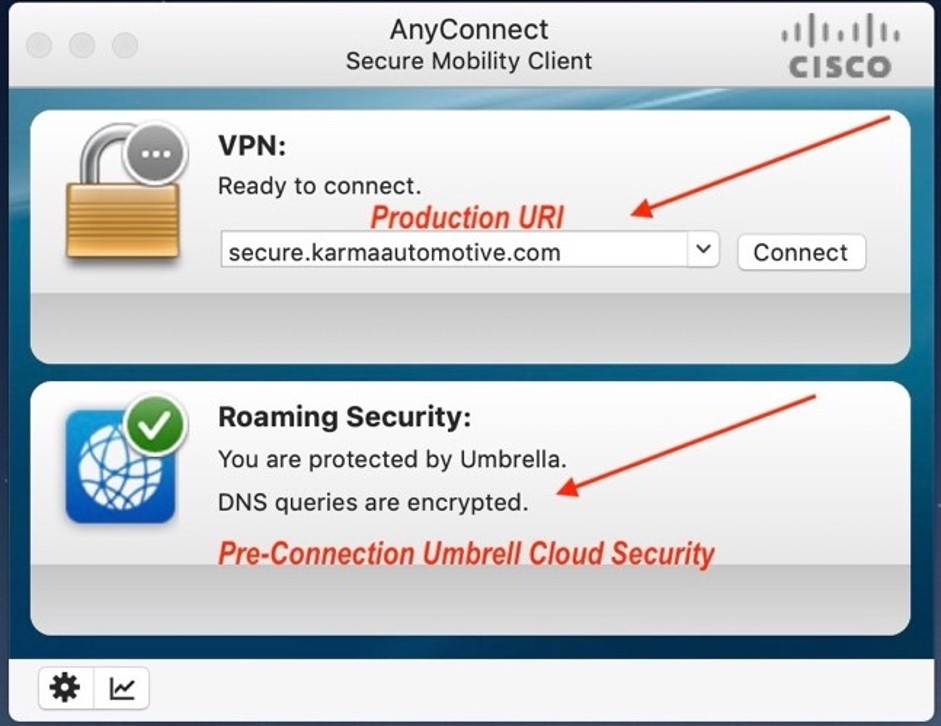
2. It will prompt you for you Windows Login Credentials
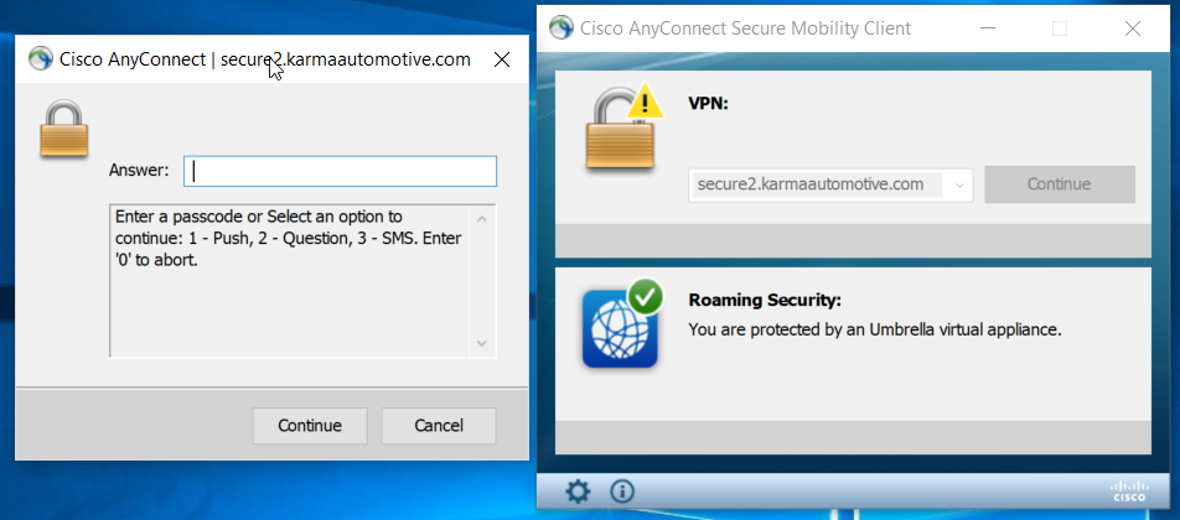
3. Multi Factor Authentication with OKTA (Windows and Mac)
|
The options are:
|
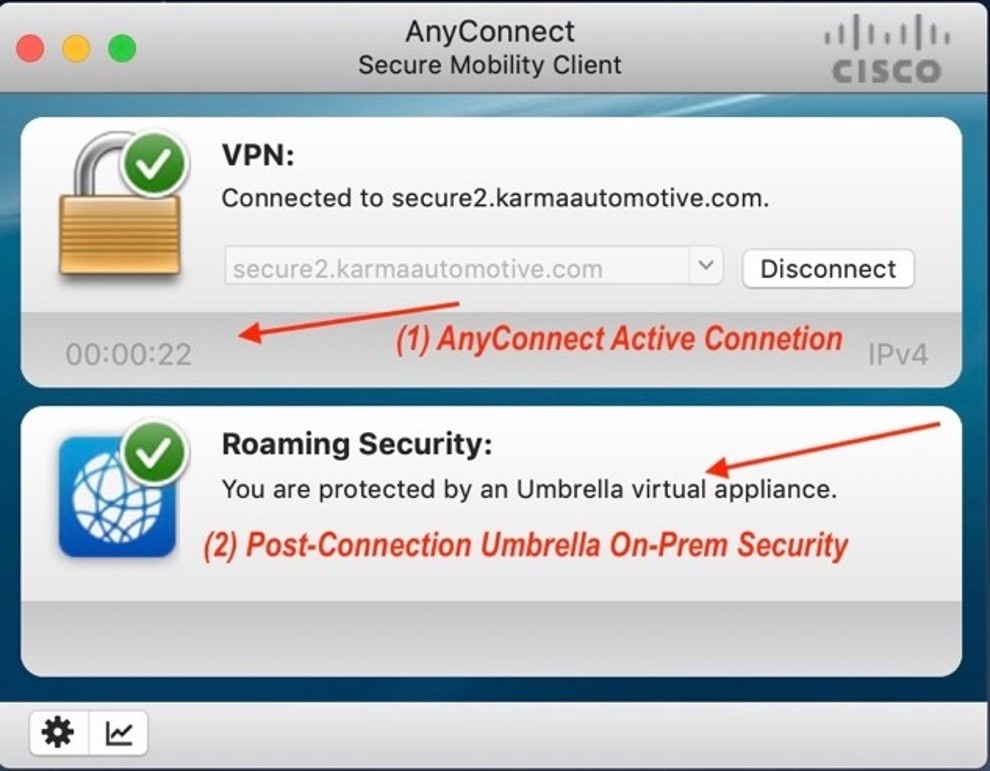
4. After connecting to the VPN service, you will be placed on the Karma network and the laptop will be protected by the Cisco Umbrella Virtual Appliance on the Karma network.
Comments
0 comments
Article is closed for comments.