
This information is intended for PC users that need to reset their password on their computer.
To review the full password policy, please see Karma Employee Password Policy
Step-by-step guide
-
Your login password is set to expire every 90 days When your password is about to expire the system will notify you within a few days on the bottom right hand corner of your screen. This message is set to appear for a short time and is easy to miss sometimes, therefore we strongly suggest you to setup an Outlook calendar reminder with at least a 10 day buffer which will allow you to plan ahead whenever a password change needs to be made.
Remote Users
If you are using a Karma Laptop remotely, you will need to reset your password proactively prior to the 90 day expiration. This will prevent you from being locked out of your computer.
Remote users must first connect to VPN using the Cisco AnyConnect Client in order to successfully reset your password. Please find directions for this process here. Once connection is complete you can follow the steps below to reset your password.
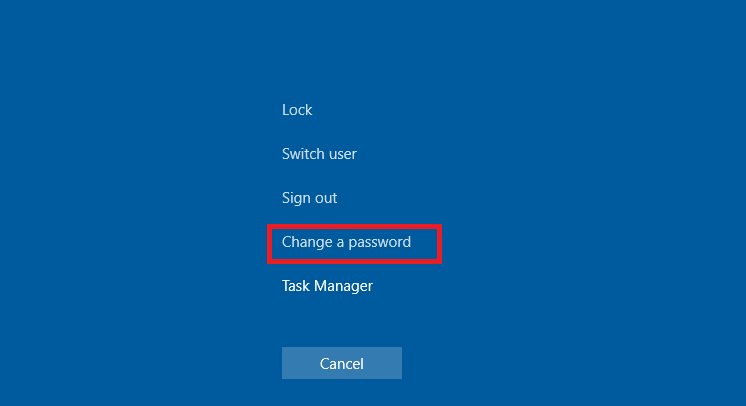
- To initiate the password reset change, please make sure you're connected to either wireless F1 or Ethernet and on your keyboard you'll press CTRL+ALT+DELETE you will see the screen below and click on Change a Password
- Here you'll notice your username is located on the first field, on the second field you must enter your current old password followed by the new password and once again confirm the new password you have chosen. All passwords must meet the proper complexity by using numbers, special characters, upper case and lower case. This will ensure your password is strong and it will be easy for you to remember but hard for others to guess.
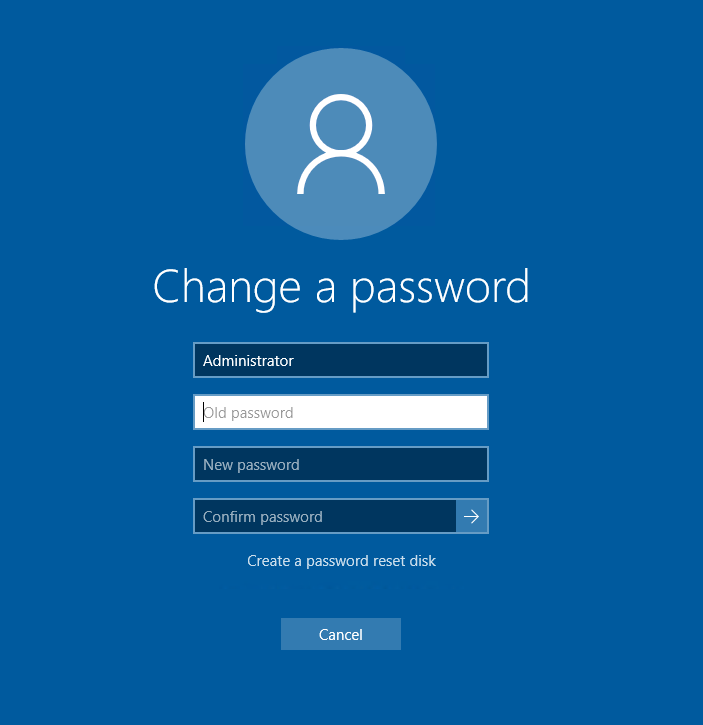
- Once you finished entering all the information, please click on the arrow shown to confirm the desired change and wait for the system to acknowledge.
- Once the password change has been completed, you will receive notification from Windows telling you that the password has been successfully changed.
Please note: Password reset cannot be accomplished by using the the VPN web application (https://secure.karmaautomotive.com). If you are remote, you must connect to VPN via the Cisco AnyConnect Client prior to completing the steps listed above. Whenever in doubt, please contact us by sending a help ticket to help@karmaautomotive.com
Comments
0 comments
Article is closed for comments.